

Hey there! As a supplier of RF Mono Security Gates, I often get asked about how to export the data collected by these nifty devices. In this blog post, I'm gonna walk you through the whole process, step by step.
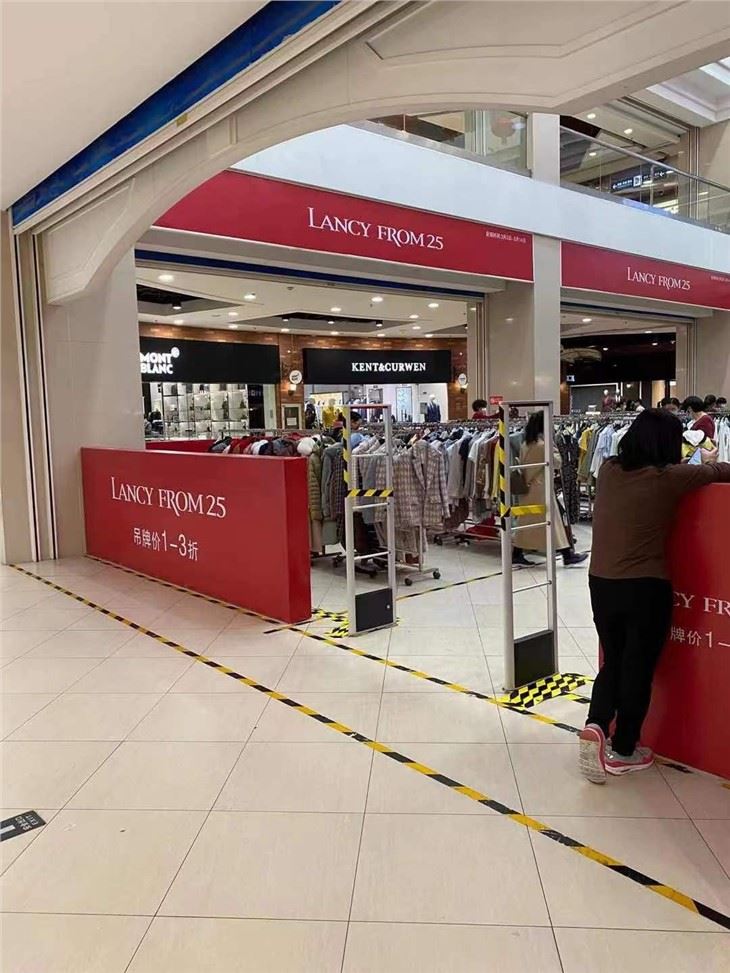
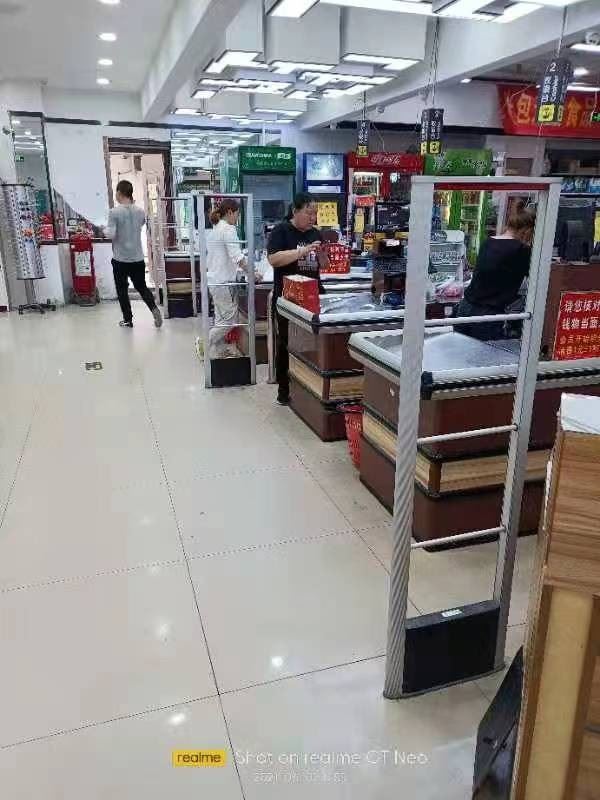
First off, let's talk a bit about what RF Mono Security Gates are and why data collection matters. RF Mono Security Gates are part of the EAS RF Security System Products. They're used in a whole bunch of places, like retail stores, libraries, and warehouses, to prevent theft. These gates work by detecting the radio - frequency (RF) signals emitted by security tags attached to items. Every time an item with an active tag passes through the gate, the system records that event, and all this data can be super useful.
The data collected by RF Mono Security Gates can give you insights into things like peak traffic times, which areas of your store have the most theft attempts, and which products are more likely to be targeted. This info can help you make better decisions about store layout, security measures, and inventory management.
Now, onto the main question: how do you export this data?
Step 1: Know Your System
The first thing you gotta do is understand the specific RF Mono Security Gate system you're using. There are different models out there, like the RF 8.2Mhz mono acrylic anti - theft system and the Aluminium RF Mono Anti - theft System. Each system might have its own way of handling data and exporting it.
Most of these systems come with a control panel or a software interface. You need to familiarize yourself with this interface. Usually, there's a menu or a section dedicated to data management. Look for options like "Data Export", "Reporting", or something similar.
Step 2: Choose the Right Format
Once you've found the data export option, you'll need to decide on the format you want the data in. Common formats include CSV (Comma - Separated Values), Excel (XLS or XLSX), and XML.
- CSV: This is a simple text - based format that can be opened by most spreadsheet programs. It's great if you want to do some basic data analysis or share the data with others who might not have specialized software.
- Excel: If you're planning to do more in - depth analysis, like creating charts and graphs, Excel is a good choice. It allows you to manipulate the data easily and has a lot of built - in tools for data analysis.
- XML: This format is more suitable if you want to integrate the data with other systems or applications. It's a structured format that can be easily parsed by programming languages.
Step 3: Set the Parameters
Before you hit the export button, you'll need to set some parameters. This includes things like the date range for the data you want to export. You might only be interested in the data from the past week, month, or a specific time period.
You can also choose which types of data you want to export. For example, you might want to export only the data related to theft alarms, or you might want to include all events, such as normal passes and tag deactivations.
Step 4: Export the Data
Once you've set all the parameters and chosen the format, it's time to export the data. Click the export button, and the system will start generating the file. Depending on the amount of data you're exporting, this might take a few seconds to a few minutes.
After the export is complete, the file will usually be saved to a location on your computer or a connected storage device. You can then open the file and start working with the data.
Step 5: Troubleshooting
Sometimes, things don't go as smoothly as planned. Here are some common issues you might encounter and how to fix them:
- Data not exporting: If you click the export button and nothing happens, check if your system has enough storage space. Also, make sure you have the right permissions to export the data. If the problem persists, contact the technical support team for your RF Mono Security Gate system.
- Incorrect data format: If the exported file doesn't open correctly or the data looks messed up, double - check the format you selected. Sometimes, the system might have a default setting that's different from what you intended.
Step 6: Analyzing the Exported Data
Once you have the data exported, it's time to put it to good use. You can use spreadsheet software like Microsoft Excel or Google Sheets to analyze the data. Look for patterns, trends, and outliers.
For example, if you notice that there are a lot of theft attempts during a particular day of the week, you might want to increase security on that day. If a certain product category has a high number of theft alarms, you might consider changing the way it's displayed or adding extra security tags.
Step 7: Storing and Sharing the Data
It's important to store the exported data securely. You can save it on your company's internal servers or use cloud storage solutions. Make sure you have proper backup procedures in place so that you don't lose the data.
If you need to share the data with other departments or stakeholders, make sure you follow your company's data sharing policies. You might need to anonymize the data or get permission before sharing it.
Conclusion
Exporting the data collected by RF Mono Security Gates is a straightforward process if you know what you're doing. By following these steps, you can get valuable insights from the data and use them to improve the security and efficiency of your business.
If you're in the market for a new RF Mono Security Gate system or have any questions about data export and analysis, don't hesitate to reach out. We're here to help you make the most of your security investment. Whether you're a small retailer or a large warehouse operator, our RF Mono Security Gates can provide the protection and data you need.
References
- General knowledge about RF Mono Security Gates and data export processes.
- Manufacturer's manuals for RF Mono Security Gate systems.