

As a seasoned provider of EAS RF Dual Systems, I understand that configuring the settings of these systems can be a complex yet crucial task. In this blog post, I'll guide you through the process step - by - step, sharing professional insights and practical tips to ensure your EAS RF Dual System operates at its best.

Understanding the EAS RF Dual System
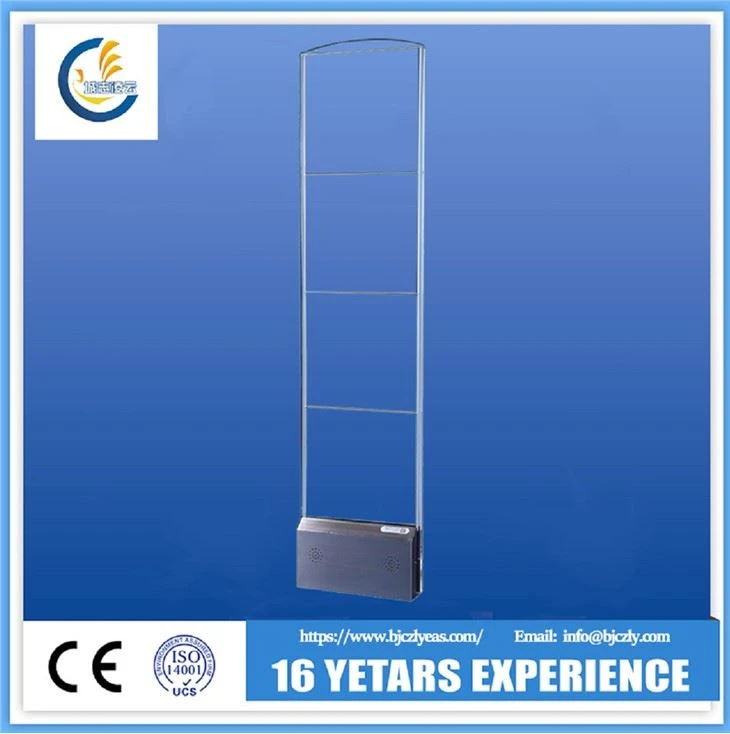
Before diving into the configuration process, it's essential to understand what an EAS RF Dual System is. This system is designed to enhance the security of retail stores and other commercial spaces. It uses radio - frequency (RF) technology to detect unauthorized removal of tagged items. The "dual" aspect often refers to the ability to work with different frequencies or in different modes, providing more flexibility and better performance compared to single - frequency systems.
Pre - configuration Checks
- Hardware Inspection
- First, carefully examine all the components of your EAS RF Dual System. This includes the antennas, control units, and power supplies. Look for any visible signs of damage such as cracks, loose connections, or frayed wires. A damaged component can lead to inaccurate detection and system malfunctions.
- Ensure that all the hardware is properly installed. The antennas should be mounted at the correct height and distance apart as specified in the product manual. Incorrect installation can cause interference and reduce the system's effectiveness.
- Power Supply
- Connect the system to a stable power source. Fluctuations in power can disrupt the normal operation of the EAS RF Dual System. Consider using a surge protector to safeguard the equipment from power spikes.
- Check the power indicators on the control unit and antennas. If any of the indicators are not lit or show abnormal readings, there may be a power issue that needs to be resolved before proceeding with the configuration.
Initial System Setup
- Power On
- Once you've completed the pre - configuration checks, power on the EAS RF Dual System. Allow the system to initialize. This may take a few minutes, during which the system will perform self - tests and calibrate its internal components.
- Network Connection (if applicable)
- If your EAS RF Dual System is designed to be connected to a network, establish the connection. This could be a local area network (LAN) or a wireless network. Follow the instructions in the product manual to configure the network settings correctly. A stable network connection enables remote monitoring and management of the system.
Frequency and Sensitivity Configuration
- Frequency Selection
- The EAS RF Dual System typically supports multiple frequencies. Select the appropriate frequency based on your store's environment and the type of tags you are using. Some frequencies may be more suitable for certain types of merchandise or in areas with high levels of electromagnetic interference.
- You can adjust the frequency settings through the control unit's interface. Use the navigation buttons or the touchscreen (if available) to access the frequency configuration menu. Select the desired frequency and save the settings.
- Sensitivity Adjustment
- Sensitivity is a critical parameter in the EAS RF Dual System. It determines how easily the system can detect tagged items. If the sensitivity is set too low, the system may miss some tagged items, while setting it too high can lead to false alarms.
- Start by setting the sensitivity to a moderate level. Then, conduct a series of tests by passing tagged items through the detection zone. Based on the test results, gradually adjust the sensitivity up or down until you achieve the optimal balance between detection accuracy and false - alarm reduction.
Tag Programming and Management
- Tag Activation
- Use the tag programmer provided with the EAS RF Dual System to activate the tags. Follow the programming instructions carefully. Different types of tags may require different programming procedures.
- Ensure that the tags are programmed correctly. Incorrectly programmed tags may not be detected by the system or may cause false alarms.
- Tag Database Management
- If your system has a tag database, set it up to manage the tags effectively. You can record information such as tag type, item associated with the tag, and the date of activation. This helps in inventory management and tracking of tagged items.
Integration with Other Systems
- Point - of - Sale (POS) System Integration
- Integrating the EAS RF Dual System with your POS system can streamline the checkout process and enhance security. When an item is purchased, the POS system can automatically deactivate the corresponding tag.
- Follow the integration guidelines provided by both the EAS RF Dual System and the POS system manufacturers. This may involve installing specific software or configuring the communication protocols between the two systems.
- Alarm System Integration
- Connect the EAS RF Dual System to your existing alarm system. When an unauthorized removal of a tagged item is detected, the EAS system can trigger the alarm, alerting the store staff.
- Configure the alarm settings such as the type of alarm (audible, visual, or both) and the duration of the alarm.
Testing and Troubleshooting
- System Testing
- After completing the configuration, conduct a comprehensive system test. Pass a variety of tagged items through the detection zone at different speeds and angles. Check if the system detects all the tagged items correctly and if the alarm is triggered as expected.
- Also, test the deactivation process at the checkout. Ensure that the tags are deactivated properly when an item is purchased, and the system does not generate false alarms.
- Troubleshooting
- If you encounter any issues during the testing, refer to the troubleshooting guide in the product manual. Common problems may include false alarms, missed detections, or communication errors.
- Check the system logs, which can provide valuable information about the source of the problem. If you are unable to resolve the issue on your own, contact our technical support team for assistance.
Recommended Products for EAS RF Dual System
- For high - quality sensors, check out our RF Acrylic Sensor. It offers excellent detection performance and is easy to install.
- Explore our comprehensive range of EAS RF Security System Products to find the components that best suit your needs.
- Our 8.2Mhz Antenna MONO System provides reliable detection and can be integrated seamlessly into your EAS RF Dual System.
Conclusion
Configuring the settings of an EAS RF Dual System requires careful attention to detail and a systematic approach. By following the steps outlined in this blog post, you can ensure that your system is set up correctly and operates efficiently. If you have any questions or need further assistance with the configuration process, or if you are interested in purchasing our EAS RF Dual System products, please feel free to reach out to us. We are committed to providing you with the best solutions for your security needs.
References
- Manufacturer's product manuals for EAS RF Dual System components.
- Industry standards and best practices for EAS system configuration.